USD
USD EUR
EUR GBP
GBP CAD
CAD AUD
AUD HKD
HKD JPY
JPY KRW
KRW SGD
SGD NZD
NZD THB
THB TWD
TWD 繁體中文
繁體中文 日本語
日本語 한국어
한국어 ไทย
ไทย Français
 Español
 Deutsch
 Português
 italiano
 Nederlands
 English

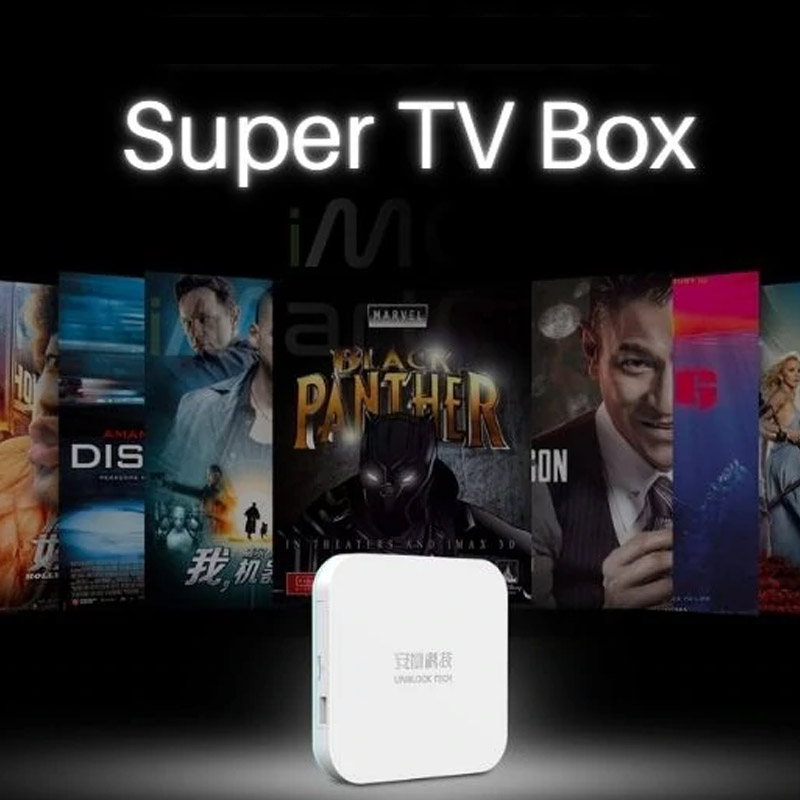

How to Register Unblock Tech UBox12 Mobile App (UPLive 2.0)?

Would you like your parents to enjoy their favorite Chinese programs anytime, anywhere?
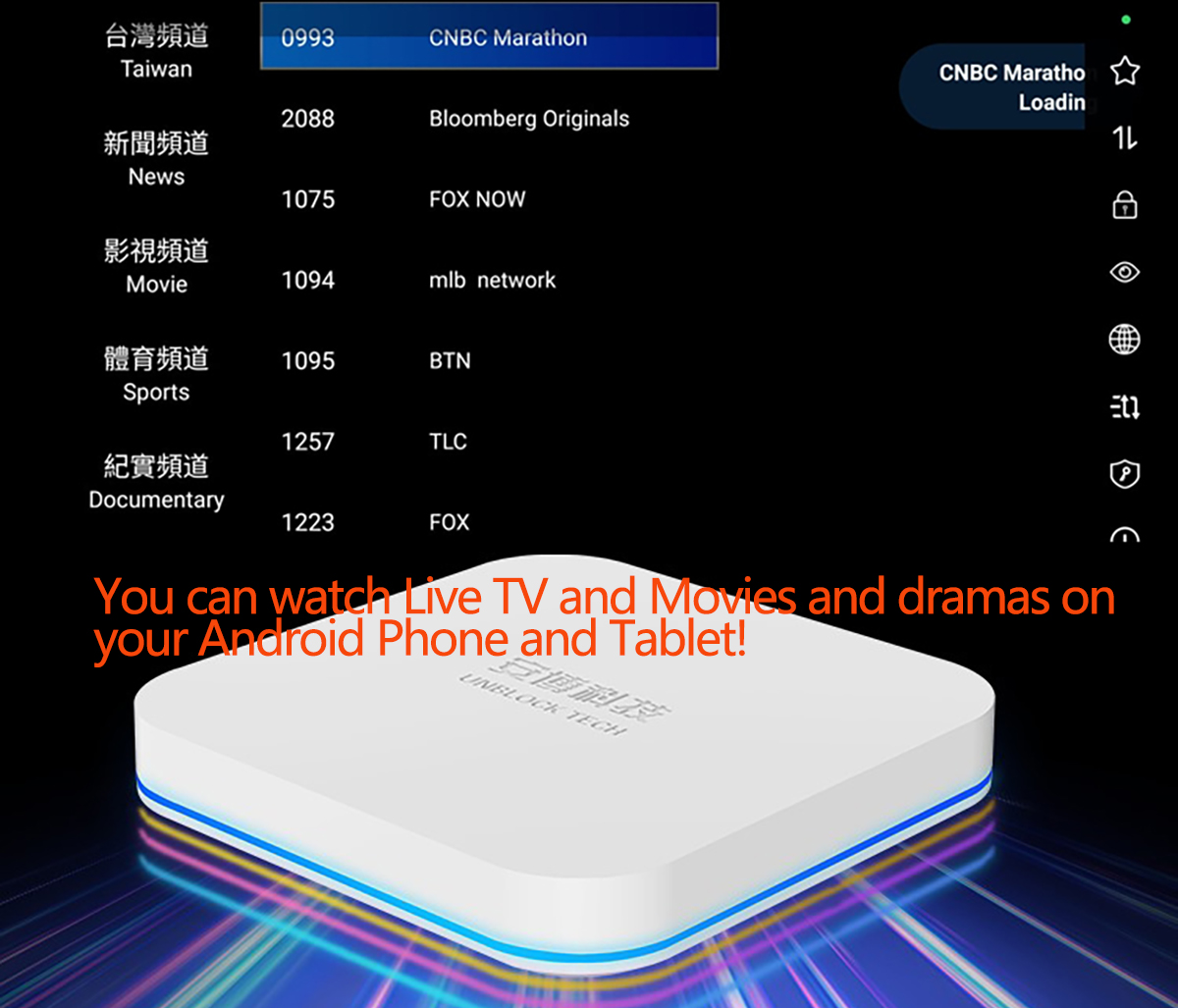
With the Unblock Tech UBOX12, you can now watch both live and on-demand content directly on your Android smartphone.
This guide will walk you through everything you need to know about setting up and using the UBOX12 Mobile App.
What Is the UBOX12 Mobile App?
The UBOX12 supports two Android applications that let you watch Chinese, Cantonese, and international content on the go:
-
UPLive – Watch live TV channels (Cantonese, Mandarin, News, Sports, Hong Kong/Taiwan/North America)
-
UPVOD – Watch on-demand programs (TV dramas, variety shows, movies, and anime)
Note: Currently, UPLive only supports Android mobile devices.
UPVOD, however, supports both Android and iOS systems.
How to Register and Bind Your Account
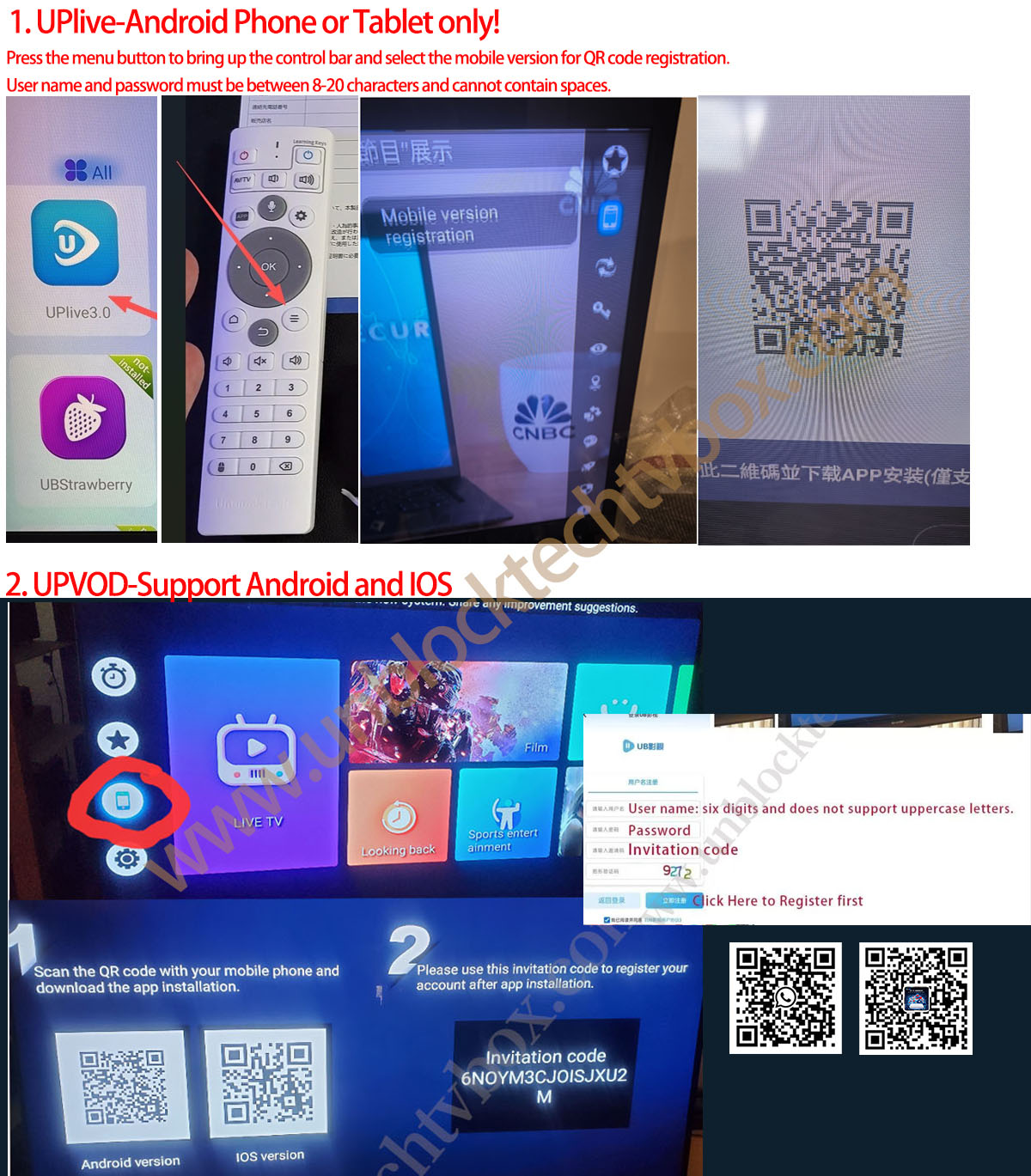
Step 1: Set Up Your UBOX12
-
Power on your UBOX12 and go to the main home screen.
-
Open the UPLive or UPVOD app on your TV.
-
Select “Mobile Version Registration” from the menu.
-
A QR code will appear on your TV screen.
Step 2: Scan the QR Code with Your Mobile Phone
-
On your Android phone, use the camera or QR scanner to scan the QR code displayed on the TV.
-
The scan will automatically begin downloading the UPLive 2.0 APK file.
-
Once the download completes, install the APK on your smartphone.
If prompted, please enable “Allow installation from unknown sources” in your Android settings.
Step 3: Register Your New Account
-
Open the UPLive 2.0 App on your phone.
-
Tap “Register”, then create your username and password.
-
Username and password must be 8–20 characters long, with no spaces.
-
-
When registration is complete, you’ll see a message: “UPLive Registration Successful.”
-
The app will automatically log you in.
Step 4: Log In
-
Return to the login page.
-
Enter your newly created username and password.
-
Once logged in, you can start watching live channels on your smartphone!
Your account will automatically sync between your TV and mobile app — no monthly fees required.
Frequently Asked Questions
Q1: Is the mobile app free to use?
✅ Yes! If you already own a UBOX12, both UPLive and UPVOD apps are completely free to download and use.
Q2: How many devices can I use at once?
✅ Typically, one UBOX can be paired with one mobile device. For multiple devices, please contact our customer service team for upgrade options.
Q3: What should I do if the video buffers or lags?
✅ Make sure you are using a stable Wi-Fi or 5G connection, and close any background apps consuming data.
Q4: What if live channels fail to load?
✅ Open the menu, log out of your account, and then log in again — this resolves most loading issues.
Q5: Why can’t I access adult channels on the UPLive mobile app?
❌ The mobile version of UPLive currently does not support adult live content.
However, adult on-demand content remains available through the UPVOD app.
Limited-Time Offer
-
Fast delivery from our North America warehouse (3–5 business days)
-
Free wireless keyboard + printed mobile app guide
-
Supports Cantonese, Mandarin, Hong Kong, Taiwan, and North American channels
-
No monthly fees – One-time purchase, lifetime access
Let your family enjoy Chinese entertainment anytime and anywhere — the UBOX12 with mobile app support is the perfect gift for your loved ones!
Click here to order your UBOX12 today and start watching across TV and mobile seamlessly!