USD
USD EUR
EUR GBP
GBP CAD
CAD AUD
AUD HKD
HKD JPY
JPY KRW
KRW SGD
SGD NZD
NZD THB
THB TWD
TWD 繁體中文
繁體中文 日本語
日本語 한국어
한국어 ไทย
ไทย Français
 Español
 Deutsch
 Português
 italiano
 Nederlands
 English

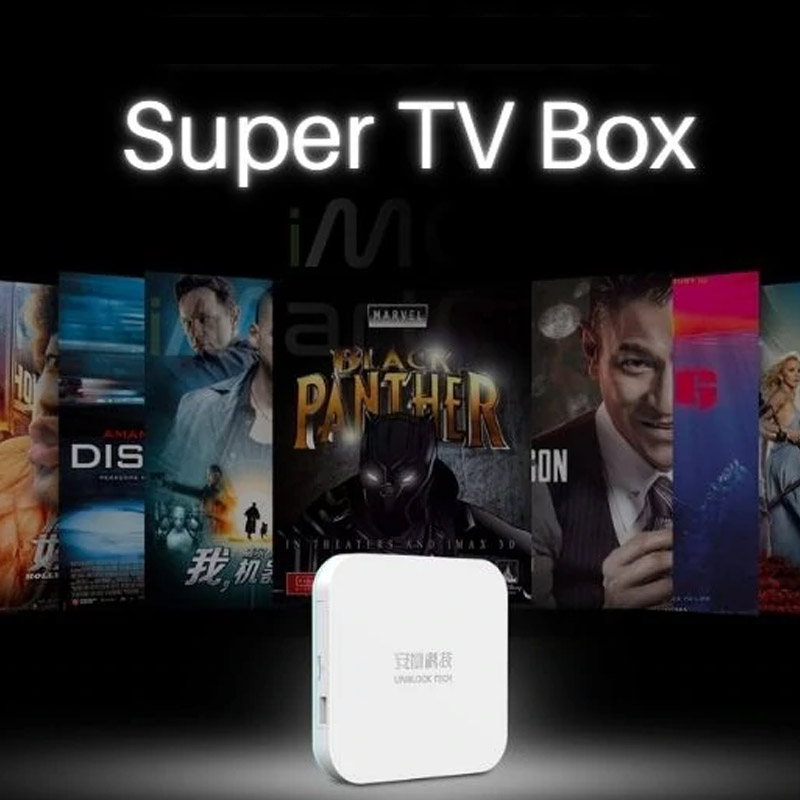

Unblock Tech UBOX 12 Remote Control Guide – Setup, Features, and Tips!

The Unblock Tech UBOX 12 is one of the most advanced streaming TV boxes on the market today, and its remote control comes packed with powerful features that make navigation simple and efficient. Whether you’re setting up your UBOX for the first time or looking to unlock advanced functions, this guide will walk you through everything you need to know about the UBOX 12 remote control.
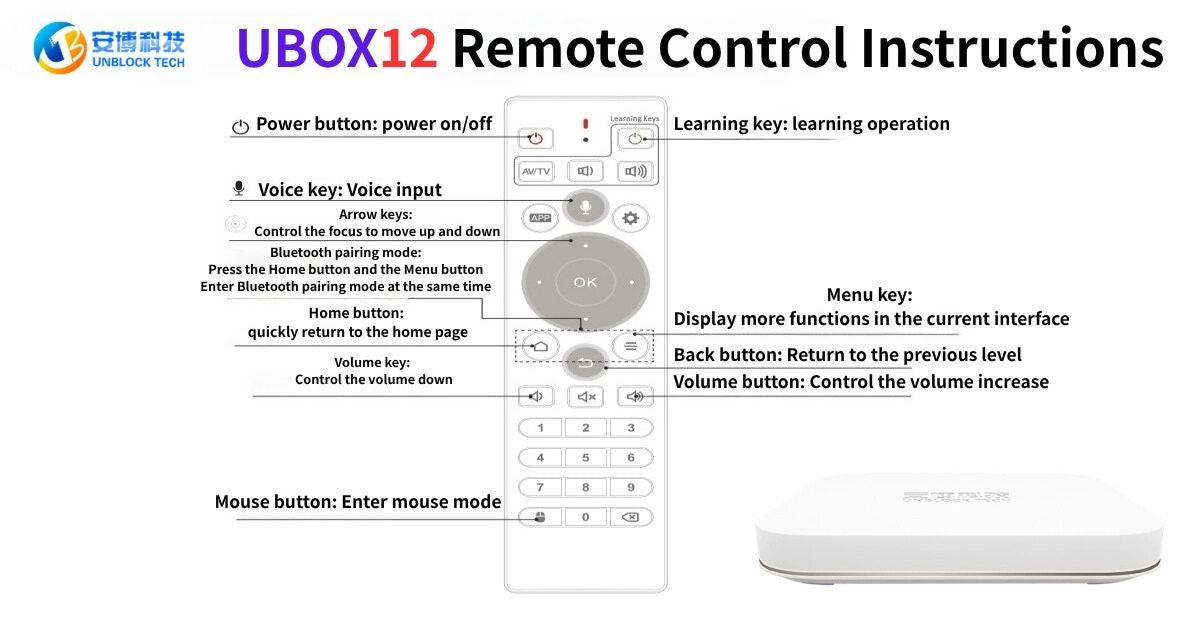
Basic Remote Functions
-
Power Button – Turns your UBOX 12 on or off with a single press.
-
Voice Key – Use the built-in microphone for quick voice input, making it easier to search for shows, movies, or apps without typing.
-
Arrow Keys + OK Button – Navigate menus smoothly and confirm selections.
-
Home Button – Instantly return to the home screen at any time.
-
Menu Key – Access more functions within the current interface.
-
Back Button – Return to the previous screen or menu.
-
Volume Keys – Easily control volume up and down.
-
Mouse Button – Switch to mouse mode for easier navigation on certain apps.
Advanced Features & Settings
1. Bluetooth Pairing Mode
To connect your remote via Bluetooth:
-
Press and hold the Home button and the Menu button simultaneously.
-
The remote will enter Bluetooth pairing mode.
This ensures smooth, lag-free operation with your UBOX 12.
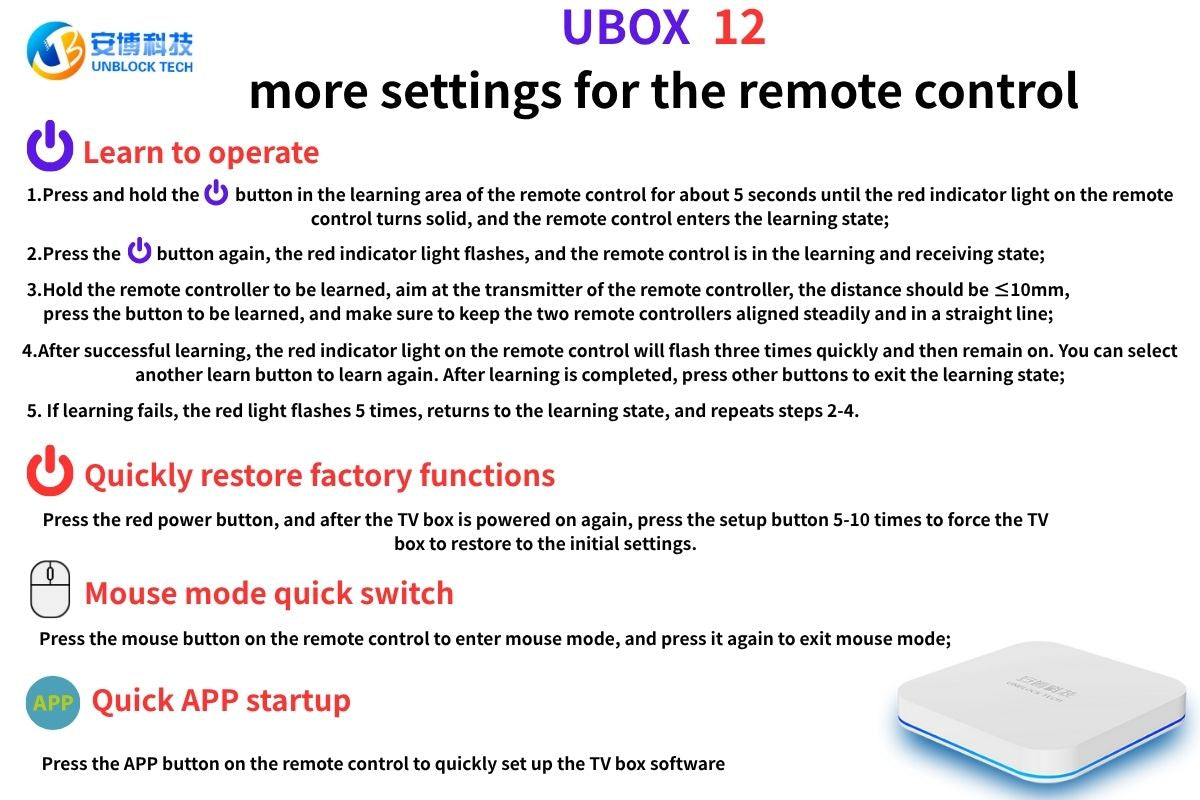
2. Learning Key – Remote Learning Function
The learning key allows the UBOX 12 remote to “learn” functions from another remote, such as your TV’s power or volume controls.
-
Hold the learning button for about 5 seconds until the red light stays on.
-
Press the button you want to program.
-
Point the original remote at the UBOX 12 remote (distance ≤10mm) and press the target button.
-
Once the red light flashes three times and stays on, the function has been saved.
This feature helps reduce the number of remotes you need at home.
3. Quickly Restore Factory Settings
If your UBOX 12 needs a reset:
-
Press the red power button to turn off the device.
-
After powering on again, press the Setup button 5–10 times.
-
This will force the TV box to restore to its initial factory settings.
4. Mouse Mode Quick Switch
Some apps require more precise navigation.
-
Press the Mouse button to activate mouse mode.
-
Press it again to exit mouse mode.
5. Quick APP Startup
The APP button lets you instantly launch the UBOX app menu, making it simple to start your favorite streaming applications right away.
Tips for Smooth Usage
-
Always keep your remote pointed at the UBOX device for stable operation.
-
If buttons stop responding, check if the remote needs re-pairing or battery replacement.
-
Use the voice input function for faster searches instead of typing manually.
The UBOX 12 remote control is designed with convenience in mind, offering a wide range of functions from simple navigation to advanced learning and Bluetooth pairing. With just a few button presses, you can control your TV box, enjoy quick app access, and even reset the system when needed.
By mastering these remote control features, you’ll enjoy a smoother, smarter, and more enjoyable streaming experience with your UBOX 12.